 semper
Exports & managing analyses
Share results, keep the Home list tidy, and use Settings that affect runs.
Exports
Share gives you six formats — a single annotated image, all fields, animations, a PDF report, the raw CSV, or everything zipped together.
In the app: open Share. Every chooser can Save to Files.
| Export | Contents |
|---|---|
| Result photo | One annotated PNG of the current field and frame |
| All field photos | Five PNGs for this frame, zipped |
| Field animations (GIF) | Five looping GIFs on a whole-sequence scale, zipped |
| PDF report | Every frame plus a telemetry page |
| CSV data |
x_px,y_px,u_px,v_px,exx,eyy,exy,znssd — sweeps add subset, step, window
|
| Everything (.zip) | Photos + animations + fields + CSV + PDF |
Why it matters: build on the CSV. Coordinates and
displacements are image pixels; filter on znssd
(match quality) to drop poorly correlated points. For a paper, export
Everything and keep it with your raw images — inputs, fields and parameters in
one archive is what makes the result reproducible. Sweep lattices also have their own
Save graph annotated PNG (see
Sweeps & results).
Managing analyses
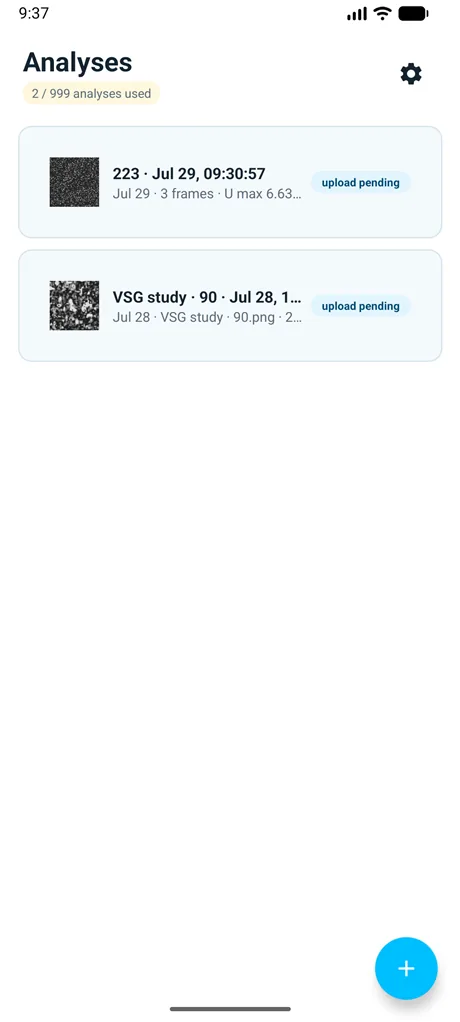
Home is your library: tap to open, long-press to select, rename or delete, and pull down to sync. + starts a new analysis.
Deleting — read the dialog
With no cloud copy, delete removes the analysis from the phone and that is that. If a backup exists, the dialog instead asks where: on this device only (keeping the backup) or everywhere. A deleted backup has a 5-second Undo.
Deleting on this device only is not losing it. The row stays on Home, badged Only in cloud, and tapping it offers to download the analysis back before opening it. Freeing space is a reversible decision.
If it fails: hit the analysis limit? It is not a paywall — email support or delete an analysis and tap Re-check. Full list of messages in Troubleshooting · sync, backup & quota.
Useful Settings
- Max frames — 10–150, default 50
- Save to cloud — queue uploads when online; Wi-Fi only holds them until Wi-Fi
- Analyses data management — local and cloud rows together; back up, restore, or delete per row
- Storage — Free up space (drop local frames of backed-up analyses → Only in cloud), Clear cache, and an Auto-free budget slider (0–64 GB)
- Your data — Export my data (ZIP of everything on this phone), Download my cloud account data, account delete, and Send crash reports (opt-in)
- Help & support — Manual, Troubleshooting, and email for private account issues
Cloud backup and account erasure: Privacy.